


Blog
Ergonomics for Employees Working from Home
 Stephen Glazier
 Dec 18, 2025

Many companies have continued to make working from home an option available to their employees, and many employees who started working from home during the past pandemic have continued to do so. While there can be benefits for both employees and employers, there are also some challenges to this arrangement. One of these challenges is workstation ergonomics.
Most of the time, office ergonomic recommendations and equipment for an office environment (versus home) fit within a fairly narrow range of widely accepted, high-quality, long-term solutions. These solutions can consist of adjustable chairs, keyboard trays, monitor arms, sit-to-stand desks, mice, and other equipment that are often provided as part of the standard or optional workstation setup and kept in the office environment.

Work-from-home arrangements existed prior to 2020 and COVID-19, but they tended to be more formal. Ergonomic solutions, while varying widely from company to company, tended to be similar to the office atmosphere in that the equipment purchases were predictable in number, the same as the equipment being used in the office, and the equipment was generally returned if the employment relationship ended.
During the pandemic, large numbers of employees were suddenly and unexpectedly working from home, making that same type of program infeasible. In reaction to this dynamic, some employers chose to provide a stipend for employees to help them set up an ergonomically sound home office. In an era of $500, $1,500, or even higher-cost ergonomic chairs—and a trend for aesthetically pleasing, if not always ergonomically sound, equipment—those stipends sometimes resulted in short-term solutions. To prevent this, some employers provide specific equipment or allow their stipends to be used only on equipment from a pre-selected list. This approach can provide some assurance that the equipment will be high-quality, but it also requires the administrative bandwidth to carefully outline and manage the parameters under which the program operates. Many employers are unable to help in setting up home workstations but still allow working from home as an option.
Some companies have, of course, gone back to full-time work arrangements from the office only, or hybrid schedules, which may, in part, address some of the ergonomic concerns related to home offices. However, in an employment atmosphere that favors flexible work locations, some employers are finding that they can keep and attract employees more easily if they allow work-from-home arrangements. Some of those same companies have limited budget and bandwidth to help with home workstation ergonomics.
How can employers and work-from-home employees improve their workstation ergonomics regardless of the program they are working within, while still moving past some of the temporary measures common during the pandemic period? While it does not solve all budget issues, we’ve provided the list below, which may help employers prioritize some of the basics and help with the costs.
No list is exhaustive, and some employees will have needs that go beyond the basics, but this is a good place to start and progress to gradual additional change where needed.
8 Most Important WFH Ergonomic Factors
It should be noted that applying the following principles will almost always result in an improved ergonomic setup. However, the techniques outlined below are general, and workers with medical conditions and pain issues may require specific assessment, additional fixes, or different solutions.
1.Chairs
For long-term use, there is no getting around the need for a supportive and adjustable chair. Back height and angle, seat pan depth, seat pan angle, overall chair height, and the ability to lock the seat pan and back independently are the basics that I look for in a chair. A long book could be written about the nuances of choosing and fitting a good ergonomic chair based on pathological conditions, pain patterns, and other conditions, but that is beyond the scope of this article.
Differences in human height, weight, and body proportions mean that there is really no one-size-fits-all chair. My best advice for employers is to work with their current supplier to develop a list of sound ergonomic chairs already known to your company that will fit employees from small to large and light to heavy. Using a known provider with a predictable pricing list can help to avoid budget overruns and unhappy employees.
If you are an employee going it on your own or with a stipend, doing your homework can pay off and help you avoid disappointment. A nice-looking chair online, with or without a high price tag, may not be the best or most efficient choice. Look for the adjustments mentioned above or the ones you know from experience that you need to be comfortable, make sure you can return what you buy if an online choice does not work out, and then spend the time to trial the chair. If you are lucky enough to live in a metropolitan area that has chair showrooms, take advantage of that and go try them out. Sometimes a little trial and error is what it takes to find what works for you. The Occupational Safety and Health Administration (OSHA) has a basic purchasing guide and evaluation checklist that includes different chair elements to look for, which may be helpful when trying to find the right type of chair.
A few words of warning:
- With few exceptions, adding lower back support to an existing task chair is rarely a good long-term answer. Most of the time, it will not stay put, and it tends to take support away from the upper back.
- Non-adjustable armrests are never a good option.
- The foam and/or mesh in the seat pan will never feel as good as when the chair is brand new. If it feels thin or marginally supportive now, it will feel thinner and less supportive later.
2. Adjustable Work Surface or Keyboard Tray
If you take some time and look, you can find fully adjustable work surfaces, such as sit-to-stand desks, that do not cost thousands of dollars. These desks have become more affordable over the last few years and, depending on your workflow, can work well to get your keyboard and mouse where you need them and allow you the flexibility to stand for a portion of your day.
There are other nuances to using a sit-to-stand desk surface. These may include setting a timer to help you remember when to sit and stand, as well as using an antifatigue mat that has to be moved when moving back to a sitting position.
Sit-to-stand desk surfaces, while useful, are not magic. You need to get into the standing position and check all the same body angles you would in the sitting position. With the obvious exception of your knees and hips, the same angles should apply. You will also need an easily adjustable monitor stand to allow small adjustments to screen height as you move from sitting to standing.
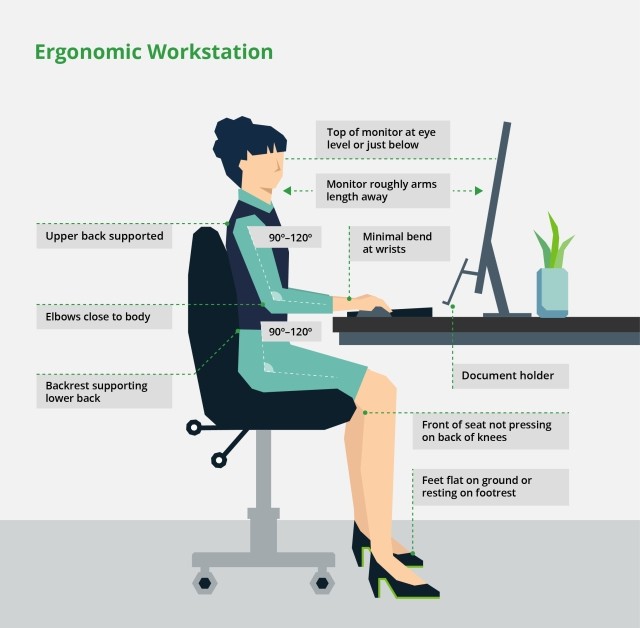
If a sit-to-stand desk is not available or you prefer not to use one, a keyboard tray may be necessary to get your wrists into neutral and your elbows at about 90 degrees. A good keyboard tray will also have an angle adjustment to allow the tray to be tipped, putting the wrists into a neutral position for typing.
Desktop sit-to-stand devices are not generally adjustable enough to allow for both standing and sitting neutral head and neck postures unless they have both an adjustable keyboard height and an adjustable monitor stand built in. Ultimately, body segment angles should be used to assess the success of positioning. See the assessment section of this article as it relates to body segment angles.
3. Separate Keyboard and Mouse
Working for long periods from a laptop without a separate keyboard and mouse is a known problem. There is really no way to get the head, neck, hands, and wrists into a good position for long-term work tasks when the monitor is low because it is close to and connected to the keyboard. A good basic keyboard and mouse are a major step up. If you know you need a specific type of mouse from past experience, it is usually worth the investment to go with that type of mouse in any new setup.
One trick that can help with excess movements, such as having to pick the mouse up and move it over repeatedly to get across multiple screens, is to adjust the mouse speed in your settings. You can turn the mouse speed up so you are moving your mouse less to get your cursor across the screen or screens. With this adjustment, you may need to work through some trial and error to find the balance between the need for large movements and small, precise movements. At the end of the day, you are looking for a speed that allows you to keep your mouse on the mousing surface, limits your wrist movement to a reasonable range of motion, and also allows you to easily and accurately stop where you need to on the screen.
4. Elevated, Close, and Full-Size Monitors
Even with a laptop monitor elevated, it is often more difficult to see the screen simply because of its size. It is preferable to elevate a full-size monitor to eye level using a monitor stand that allows for easy adjustment. It should also be noted that moving the monitor too far away will lead to the same eye strain as using a monitor that is too small or has glare on it. Try to keep the monitor at eye level and no more than about arm’s length away.
If you use multiple applications, chances are you will also need a second monitor. Keep these monitors level with each other with the top line of functional print at or very slightly below eye level and the seam between them directly ahead. If you use one monitor more than the other, move the application you use most often periodically so that at the end of your workday, you will have looked at the two monitors about the same amount of time.
5. Prevent Glare
Remember to adjust blinds, curtains, and lights to prevent excess glare—or even bright backlighting—from behind your monitor. Modern glare-resistant screens work well but can sometimes hide reflections or competing light sources. If you find yourself squinting or leaning forward to see your monitor and it is close enough (about arm’s length or less away), turn the lights on and off and/or block light coming in through windows from behind the screen, and see if that helps. If it does, you may need to find a way to adjust those sources permanently or during specific times of the day.
6. Take Breaks
Frequent breaks to stand up, walk around, and focus on objects further away than the computer screen are just as important at home as they are in the office, if not more so. Stand when you can during calls and ensure you are standing up and moving around at least once per half hour. If you use a sit-to-stand desk, start out slow, alternate between sitting and standing, and build up to standing no more than 50% of the time. Standing for longer periods has its own ergonomic challenges and problems.
7. Use a Headset
Ear buds and headsets have become so ubiquitous that I almost left them off this list. If you must type or write while on calls, be sure you hook up the headset or ear buds that are most likely already on your desk—or maybe in your ears—as you read this. This will allow you to stay in a good posture during meetings and calls, even if you need to write notes. Holding a cell phone or desk phone with your hand, or worse, between your jaw and your shoulder, will result in neck and shoulder irritation.
8. Use a Self-Assessment Tool
While the above items are certainly important, the list is not exhaustive, and just having the right equipment doesn’t guarantee a comfortable workstation. Adjusting the equipment optimally is often a process of fine adjustments. Beginning with a good self-assessment tool can help shorten this process or help you make periodic adjustments over time. I included links to some OSHA tools, but they are only one of the many checklists and online tools available. Self-assessment and virtual ergonomic assessment tools are sometimes available through an employer’s workers’ compensation insurer or directly from the employer or a vendor. Many educational institutions, government websites, and some medical providers also place their tools online for others to use. Take advantage of these tools to educate yourself and find a comfortable workstation setup that works for you.
If you have questions or wish to get input on specific ergonomic or safety items, contact your account team or me directly.
Disclaimer: The information contained herein is offered as insurance industry guidance and provided as an overview of current market risks and available coverages and is intended for discussion purposes only. This publication is not intended to offer financial, tax, legal or client-specific insurance or risk management advice. General insurance descriptions contained herein do not include complete Insurance policy definitions, terms, and/or conditions, and should not be relied on for coverage interpretation. Actual insurance policies must always be consulted for full coverage details and analysis.
Author

Table of Contents